Most AI chat tools live in their own tab. You copy text out of a page, paste it into a chat window, and copy the answer back. Page Assist removes that round trip: it is an open-source browser extension that opens a model in a sidebar next to whatever page you are reading, plus a full-tab web UI for longer conversations.
It started as a front end for local models running in Ollama, and that is still the default. But it also accepts any OpenAI-compatible endpoint, which means the same sidebar can switch between a small model on your laptop and a frontier model in the cloud. This guide walks through four workflows people actually use it for, and for each one says which features to turn on and whether a local or a cloud model fits better.
Page Assist at a glance
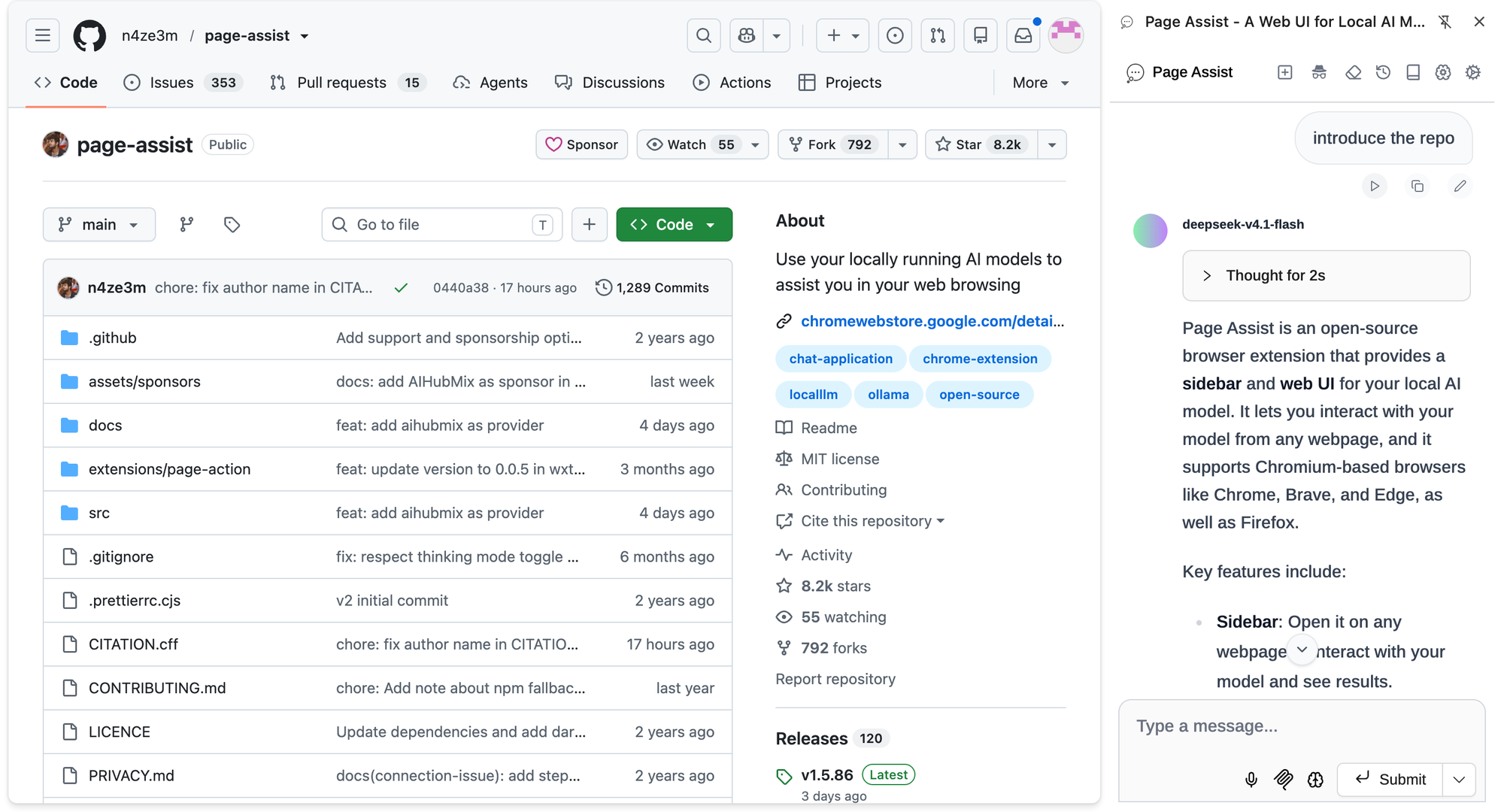
Figures below come from the GitHub repository and the Chrome Web Store listing as of October 8, 2026.
- License and cost: MIT, free. Built by an independent developer (n4ze3m) with community contributors.
- Adoption: about 8,200 GitHub stars; 300,000 users and a 4.8 rating on the Chrome Web Store.
- Release pace: weekly. Version 1.5.86, released October 8, 2026, added AIHubMix to the preset provider list.
- Browsers: Chrome, Brave, Edge, Vivaldi, Firefox, LibreWolf, Zen. Opera and Arc get the web UI but not the sidebar.
- Privacy: no telemetry. Chat history, settings, and knowledge-base embeddings stay in browser storage.
Install it from the Chrome Web Store (Firefox and Edge have their own add-on pages). Two shortcuts are worth learning on day one: Ctrl+Shift+Y opens the sidebar, Ctrl+Shift+L opens the web UI.
Which workflow needs what
| Workflow | Feature | Needs | Model fit |
|---|---|---|---|
| Read a long page | Chat with Website | Chat model | Cloud for long pages |
| Rewrite selected text | Copilot menu | Chat model | Local is enough |
| Ask your own files | Knowledge Base | Chat + embedding | Either |
| Let the model act | Page Action / MCP | Tool-calling model | Cloud |
"Model fit" is a starting point, not a rule. A strong local model on a good GPU can cover all four rows.
One-time setup: a local model and a cloud provider
Local: Ollama is detected automatically
If Ollama is running on localhost:11434, Page Assist finds it without any configuration and lists every model you have pulled. If you see a 403 error when sending a message, it is a CORS issue: either enable the custom origin option under Settings → Ollama Settings, or set OLLAMA_ORIGINS=* and restart Ollama.
Cloud: pick AIHubMix from the provider list
AIHubMix is a built-in provider in Page Assist: since version 1.5.86 it sits in the provider dropdown alongside OpenAI, DeepSeek, and the others, so there is no URL to type. The flow follows Page Assist's OpenAI-compatible provider guide:
- Create an API key in the AIHubMix console (the quick start shows where).
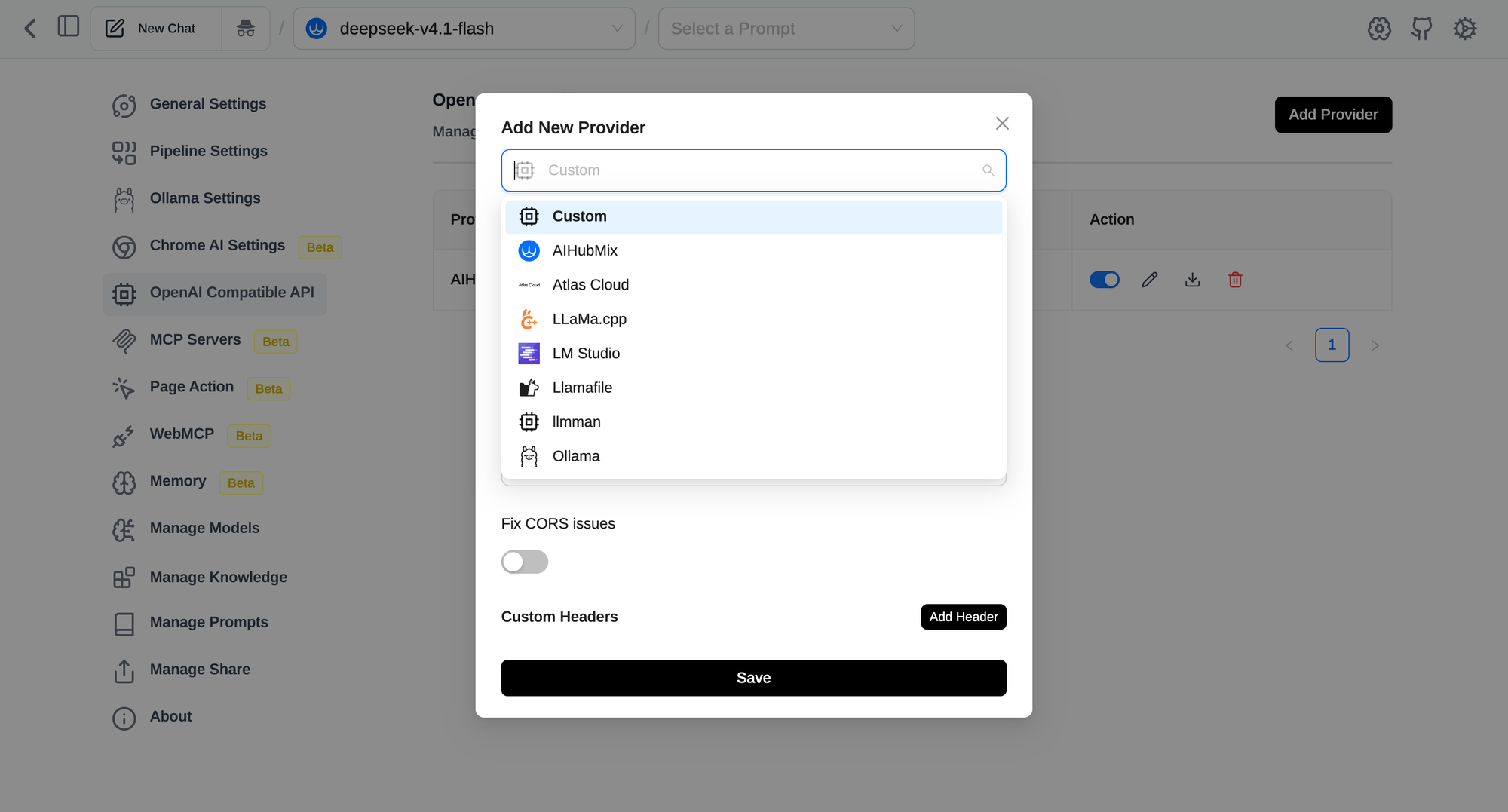
- In Page Assist, open Settings → OpenAI Compatible API → Add Provider.
- Pick AIHubMix from the dropdown. The Base URL
https://aihubmix.com/v1is filled in for you. - Paste your API key and save.
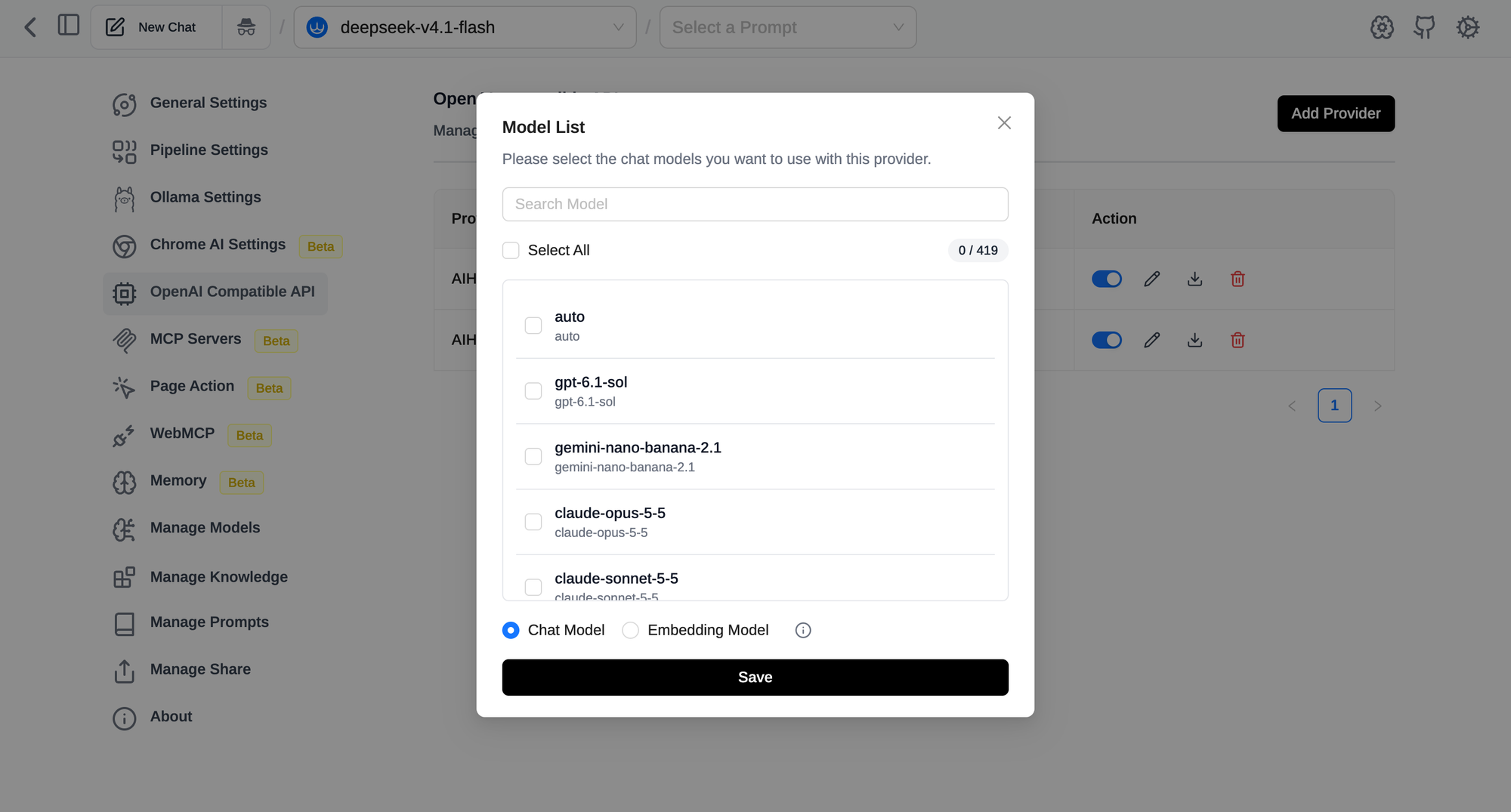
- A model list appears, fetched from AIHubMix. Search, tick the chat models you want, leave the type on Chat Model, and save.
If you want to check the key before pasting it into the extension, one request is enough. Page Assist talks to AIHubMix through the same Chat Completions endpoint:
curl https://aihubmix.com/v1/chat/completions \
  -H "Authorization: Bearer $AIHUBMIX_API_KEY" \
  -H "Content-Type: application/json" \
  -d '{"model": "auto", "messages": [{"role": "user", "content": "ping"}]}'
auto is a real model name on AIHubMix: the LLM Router picks a model per request (cost-first by default, with quality-first and latency-first variants) and bills the model it actually used. Adding auto as one of your Page Assist models is a reasonable default if you don't want to choose. Browse the model list when you do want to pick specific models and compare prices.
Embedding model: needed for two of the four workflows
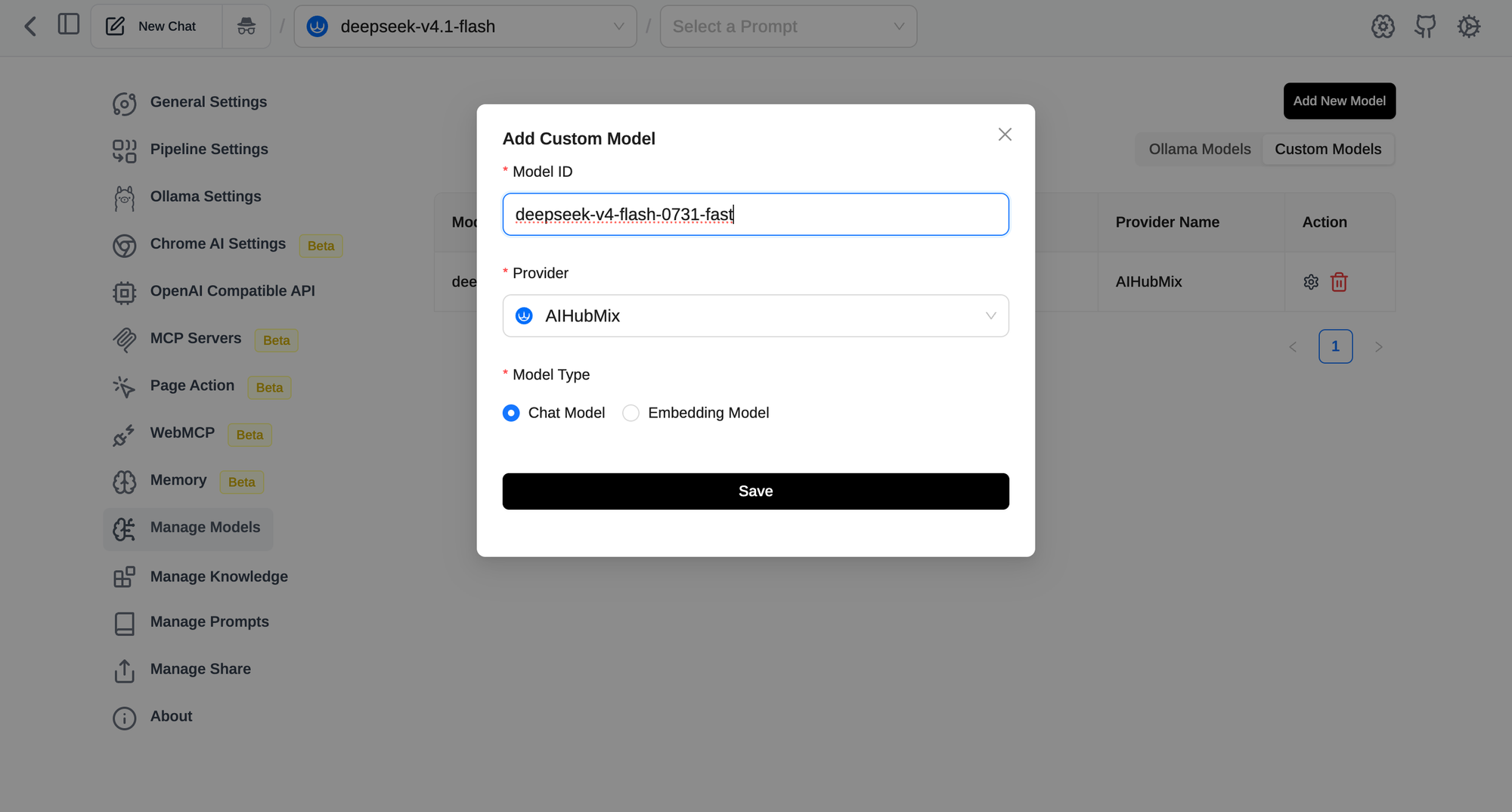
Knowledge Base, and the default mode of Chat with Website, need an embedding model. Set it under Settings → RAG Settings. Locally, Page Assist recommends nomic-embed-text via Ollama. Through AIHubMix, embedding models come from the same model list as chat models. Open the provider's model list again, tick an embedding model such as gemini-embedding-001, and save it with the type set to Embedding Model. It then appears in the RAG Settings dropdown.
Workflow 1: Reading a long page without leaving it
Open the sidebar on an article, a documentation page, or a GitHub issue thread, and turn on Chat with Website. You can now ask "what are the three main arguments here?" or "which config option fixes the error in comment 14?" and the model answers from the page you are on.
There are two ways the page reaches the model, and the difference matters:
- Embedding mode (default): the page is split into chunks, embedded, and only the relevant chunks go to the model. Works with small context windows, but can miss things that span the whole page.
- Normal mode: the page text is sent directly. Under Retrieval Settings, turn off "Enable Embedding and Retrieval" and raise "Maximum Content Size for Full Context Mode". Better for summaries and "compare section A with section D" questions, but it needs a model with a long context window.
That second mode is where a cloud model earns its place. A long spec or a 200-comment thread fits comfortably in a large-context cloud model, while a small local model would need the page cut down.
Three related features are worth knowing:
- @tab mentions: type
@to pull other open tabs into the same question, e.g. comparing two pricing pages. Enable it in settings first. - YouTube summarize button: an optional button on YouTube video pages that opens the sidebar and summarizes the video, working from the page's transcript.
- Vision: for pages where the content is mostly images or charts, the eye icon sends a screenshot of the page to a vision-capable model. Models without vision can fall back to OCR, which Page Assist's own docs describe as basic.
Workflow 2: Select text, right-click, done
The Copilot menu is the fastest workflow in the extension. Select text on any page, right-click, and pick an action under Page Assist. Five come built in: Summarize, Rephrase, Translate, Explain, and Custom.
The real value is in Custom Copilot Prompts (Settings → Manage Prompts → Custom Copilot). Each one is a title plus a template with {text} where the selection goes, and each becomes its own right-click entry. A few that pay off quickly:
Title: Reply in plain English
Prompt: Rewrite the following so a non-native speaker can follow it. Keep it under 80 words.

{text}
Title: Find the claim
Prompt: List each factual claim in the following text and mark the ones that need a source.

{text}
These tasks are short and frequent, so this is a good place for a local model: no per-request cost, no network round trip, and the selected text never leaves your machine. Keep the cloud model for selections that are long or need real reasoning (a dense contract clause, a block of unfamiliar code).
The built-in Translate prompt translates to English. If you read mostly in another direction, edit the built-in prompt or add a custom one with your target language.
Workflow 3: Asking questions about your own files
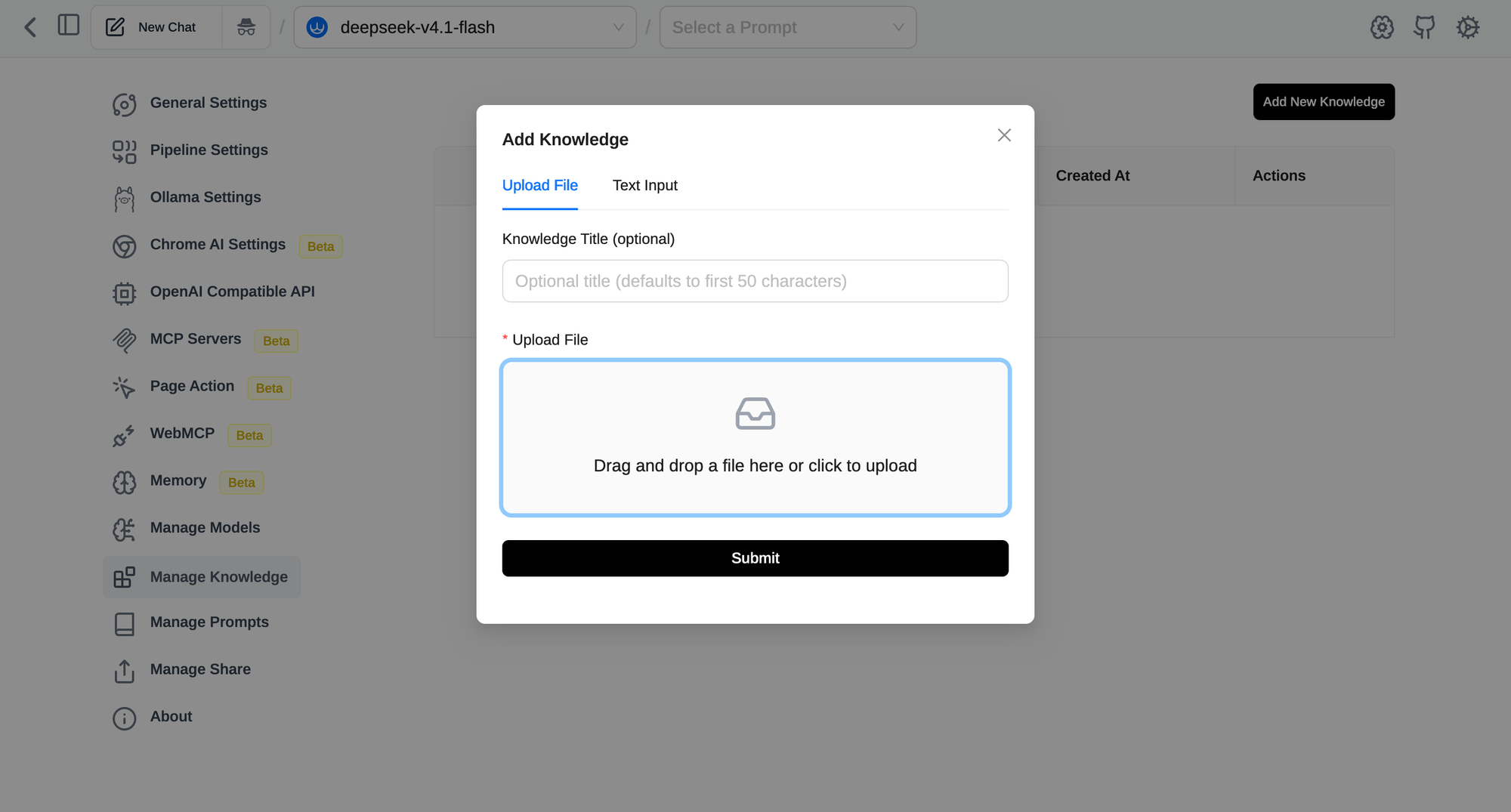
Knowledge Base turns PDFs, Word documents, text, CSV, and Markdown files into something you can chat with. Go to Settings → Manage Knowledge → Add New Knowledge, upload files, and wait for processing. Then, in the chat input, the knowledge icon lets you pick which collection to use.
Two things to know before uploading a large folder:
- Everything is processed and stored in the browser. Page Assist warns that this can cause performance issues with a lot of data. Start with a focused set of files rather than an entire archive.
- Retrieval quality depends on the embedding model more than the chat model. If answers keep missing obvious passages, try a stronger embedding model before switching chat models.
The local-versus-cloud choice here is mostly about the documents. Internal files you would not paste into a web service are a case for a fully local setup: local embedding plus local chat model. Public papers or product docs can go either way.
Workflow 4: Letting the model act on the page
The newest workflows go beyond reading. Two features give the model tools:
- Page Action is a separate companion extension for Chromium browsers. With it enabled (the cursor icon in the sidebar), the model can read the current tab and click, type, scroll, navigate, and fill forms, one step at a time. It ships separately because it needs Chrome's
debuggerpermission, which most users never need to grant. See the Page Action docs for setup. - MCP lets you connect remote MCP servers over Streamable HTTP, with bearer-token or OAuth 2.1 auth. STDIO servers can be bridged to HTTP with supergateway.
Both have an approval switch. "Require approval before each action" is on by default for Page Action. MCP is the opposite: tools run without approval until you turn on "Require approval before running MCP tools", after which each tool can be set to Allow, Human in loop, or Disable. Keep approval on for anything that submits forms, sends messages, or writes data.
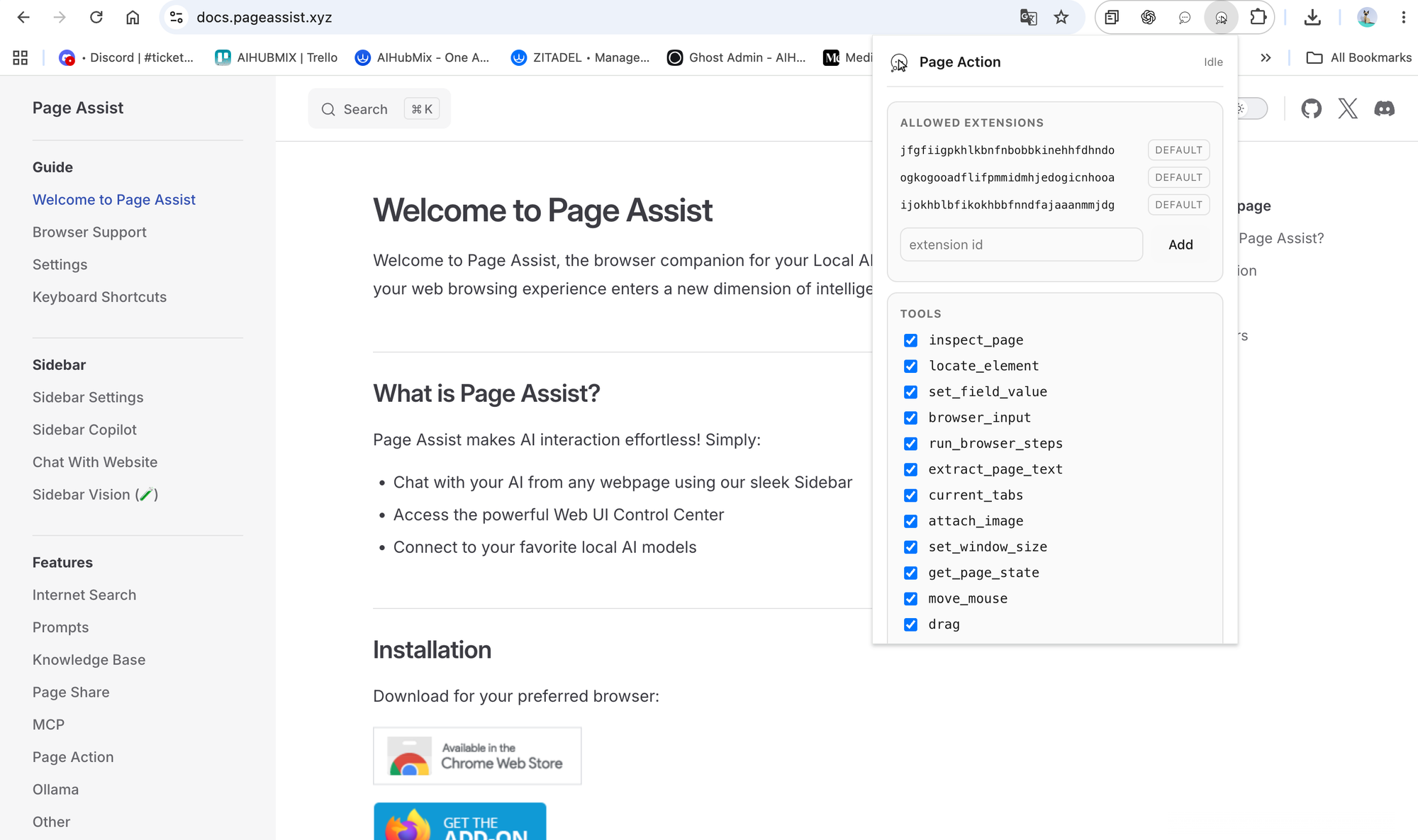
This is the workflow where model choice matters most. Multi-step tool use needs a model that follows tool schemas reliably and recovers from a wrong step, which in practice means a capable cloud model. A small local model will often stall or repeat actions.
Local or cloud: a quick way to decide
- Choose local when the text is private, the task is short (rewrites, translations, quick explanations), or you want zero marginal cost.
- Choose cloud when the page is long, the question needs reasoning across the whole document, or the model has to use tools.
- Mind what you send: Page Assist itself collects nothing, but anything sent to a cloud provider leaves your machine. AIHubMix states that it does not store prompt or response content, only request metadata such as token counts. The upstream model vendors each have their own retention policies.
Because both kinds of model sit in the same model picker, switching is a dropdown change mid-conversation, not a different app.
Common problems
- 403 when chatting with Ollama: CORS. Enable the custom origin URL in Ollama Settings, or set
OLLAMA_ORIGINS=*. - "No model found" after adding a provider: the API key is wrong or has no balance.
- No AIHubMix in the dropdown: the extension is older than 1.5.86. Update it, or pick Custom and enter
https://aihubmix.com/v1. - Embedding model not offered in RAG Settings: it was saved as a Chat Model. Add it again with the type set to Embedding Model.
- Chat with Website gives shallow answers: switch to normal mode and use a model with a longer context window.
- Sidebar doesn't open: Opera and Arc don't support it; use the web UI.
FAQ
Is Page Assist free? Yes. It is MIT-licensed and free on all supported browsers. You only pay if you connect a paid cloud provider.
Do I need Ollama to use Page Assist? No. Ollama is the default, but any OpenAI-compatible endpoint works, including LM Studio, llama.cpp, vLLM, and cloud gateways such as AIHubMix.
Is AIHubMix in the provider dropdown? Yes, since version 1.5.86. Pick it and paste your API key; the Base URL is filled in. On an older version, update the extension first.
Does Page Assist send my browsing data anywhere? Page Assist has no telemetry and stores history locally. Page content is only sent to whichever model you chat with. If that is a cloud model, the content goes to that provider.
Which embedding model should I use? Locally, nomic-embed-text through Ollama is the documented recommendation. Through AIHubMix, pick one such as gemini-embedding-001 from the same model list as chat models, and save it with the type set to Embedding Model.
Can I use different models for different workflows? Yes. The model picker is per chat, so you can keep a local model for quick rewrites and switch to a cloud model for a long page in the same session.
Does Page Action work on Firefox? No. Page Action is only available on Chromium-based browsers such as Chrome, Brave, and Edge, because it relies on the Chrome DevTools Protocol.